Settings
To access the License Management Settings screen, select  in the top-right corner, and Settings, as below:
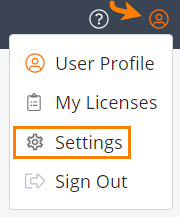
This opens the Settings screen. The top-right corner now shows your user role beside the icon. User roles include the following:
User - license users on subscriptions
Trialer - license users on trial licenses
Representative (shown below) - SmartBear employees
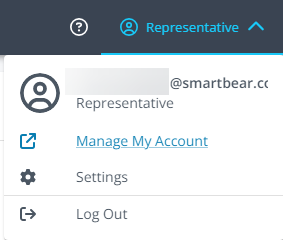
Clicking the arrow by the icon brings up the User Menu, with the following information and links:
The email address associated with your account
Manage My Account - where you can update your account phone number and password
Settings
Log Out
Control panels
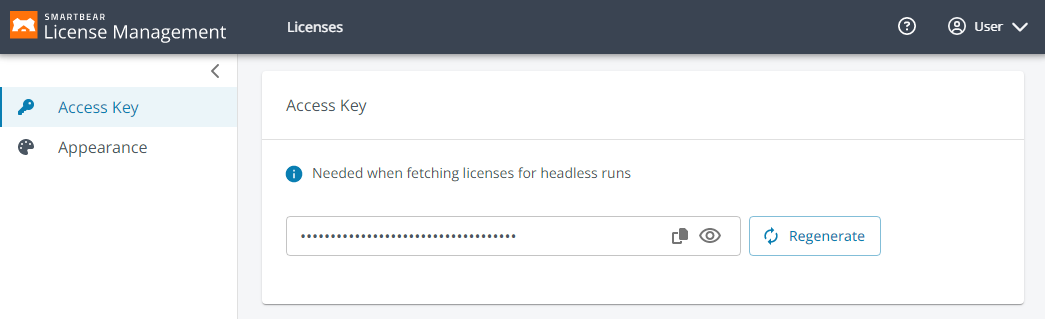
The Settings page has two control panels:
Access Key
Appearance
Access Key
You need the Access Key when setting up headless testing. Use it in your command line configuration as specified in your product's documentation. See Headless Testing for more information.
The Access Key pane displays the following details:
Token Name - the name of the access key. For example, the default access key.
Creation Date - the date and time the key was created.
Last Used - the date and time the key was last used.
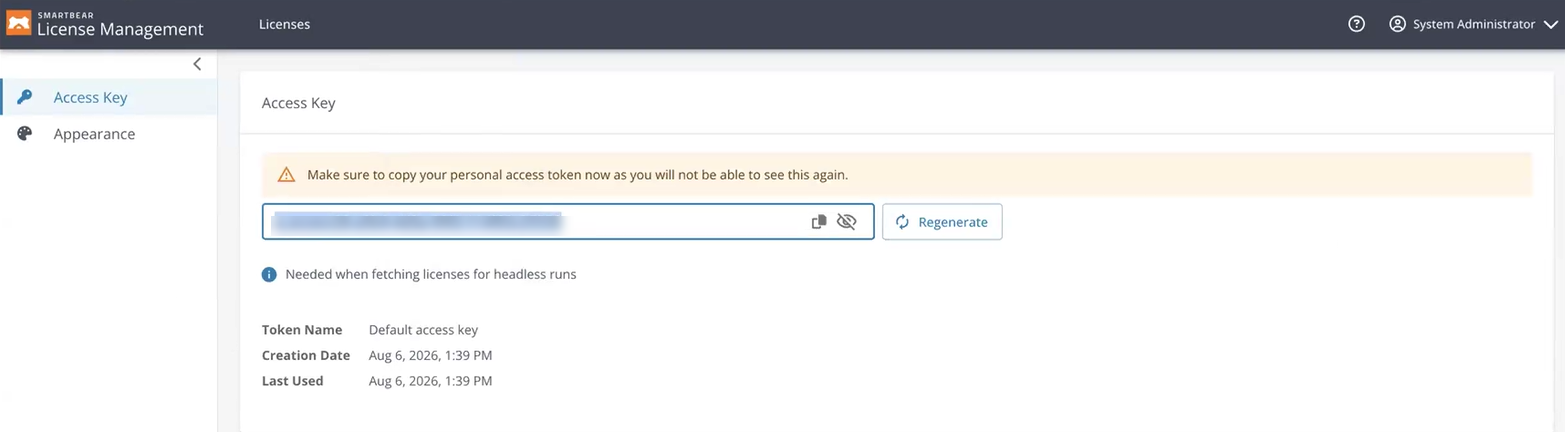
For security reasons, the access key value is not displayed on this screen. To get a new key, click Regenerate. The new key appears in the box. Click Copy to copy the key to the clipboard. Click Toggle visibility to show or hide the key value.
Important
Copy the key and store it in a secure location immediately. After you leave this screen, the key cannot be viewed again. Regenerating a key also invalidates the previous key, and any configuration that uses the old key stops working until you update it with the new one.
Appearance
Clicking on Appearance in the lefthand menu brings up the Appearance tab:
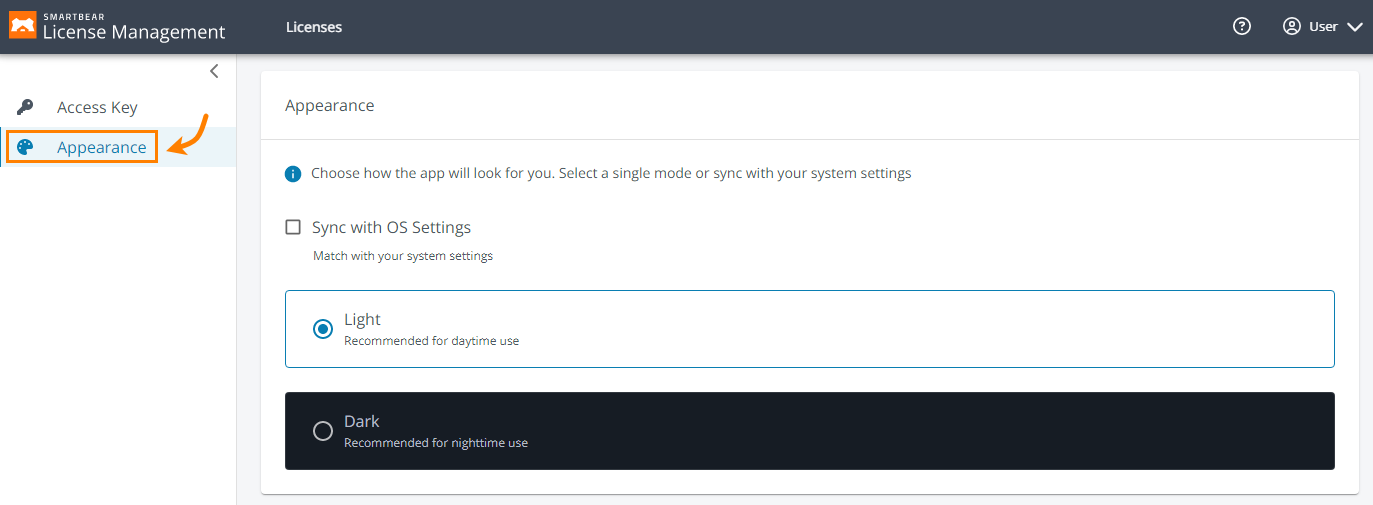
From here, you can manage the appearance of License Management on your device. Choose between:
Sync with OS Settings: In this mode, License Management matches your operating system's light or dark appearance.
Note
When selected, this overrides the two options below
Light: mode recommended for daytime use.
Dark: mode recommended for nighttime use.
To return to the Licenses main page, click Licenses, as in the image below:
