Managing Assigned Subscriptions
As an Organization Admin, you manage team member access and subscription assignments through the SmartBear Admin portal. You can assign, edit, and remove subscriptions for members in your organization.
Manage member subscriptions - Add, edit, remove, and reassign product subscriptions to individual team members.
Assign seat types - Grant Viewer (read-only) or Editor access based on your organization's plan.
Invite members - Add new team members to your organization and assign subscription seats during the invitation process.
Handle subscription limits - Monitor available seats and upgrade your plan when needed.
Remove members - Delete team members and unassign their subscriptions
To manage subscriptions for a member, do the following:
Managing Members with Viewer or Editor Seat Types
Organization Admins can invite members to your organization and assign viewer and editor seats. To invite members in viewer mode, see, Inviting Members.
Note
Depending on your plan, you may see an option for an Editor or Viewer Seat Type. The Seat Type determines what roles and permissions you can grant to an organization member in the appropriate products.
Viewer Seat - read access or below.
Editor Seat - edit access or below.
On the SmartBear Admin homepage, click the Members tab.
Click Invite Members to add a member to the organization.
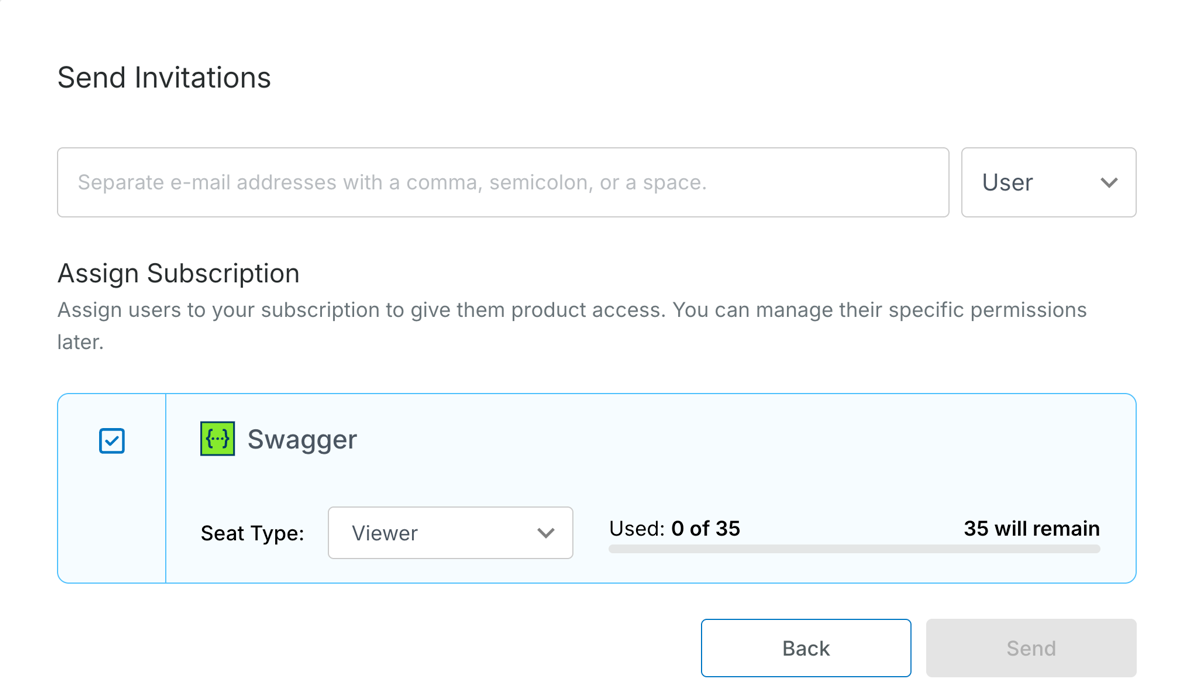
The Send invitation dialog box appears.
In the Invitees box, enter the email address of the user you want to invite.
Under Assign Subscription, the Viewer or Editor seat types are assigned to the user, and you can view the number of available seats as you enter the user names in the send invitation box.
Caution
If you exceed the number of seats, you will receive an error message notifying you. You can click the Contact Us link to upgrade your plan and add more seats.
Click Send Invitation to invite users.
On SmartBear Admin homepage, click the Members tab.
Click the user email whose subscription you want to edit. See Members
The Subscription dialog box displays member details and allows you to do the following:
Click Remove Member to remove the user.
Click Unassign Admin Role to remove the user from the admin role.
Click Unlock Subscription if a subscription shows a locked icon next to the user name. See Unlocking Subscriptions.
Click Manage if you want to manage subscriptions, such as assigning or unassigning the subscription in the Edit Subscription Assignment dialog box.
Important
Only available subscriptions can be assigned to members of the organization.
Assign and Unassign Subscriptions
You can assign and unassign subscriptions on the Members page. The options you see in the Edit Subscription Assignment dialog box depend on your subscription plan:
You can assign or unassign the subscription.
Subscription with the Viewer add-on, allowing you to select the seat type, Viewer or Editor.
Modular subscription, you select the Editor seat type and then select the Swagger products to assign.
Perform the following steps:
Click the Members tab to view the list of members. The Members page displays each member's details.
Click the ellipsis button next to the member you want to assign or unassign.
Select Edit Assignment.
The Edit Subscription Assignment dialog box displays the member name, the subscription plan, and the number of seats assigned for each Swagger product.
Review the subscription details.
Click Confirm to save your changes. SmartBear assigns the license to the user.
Assign a subscription with the Viewer Add-on
If your subscription includes the Viewer add-on, the Seat Type list is available. To assign the subscription, do the following:
The Edit Subscription Assignment dialog box (Optional) . To view seat details, select the checkbox next to the product.
In the Seat Type list, select the seat type:
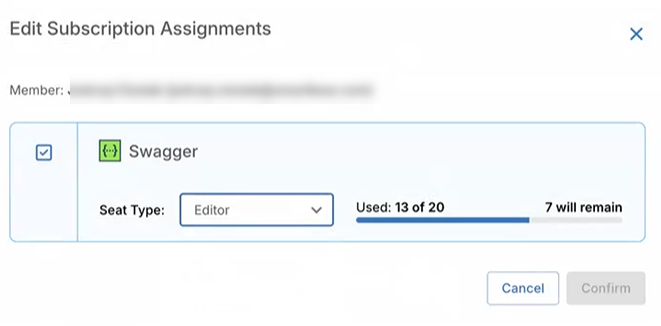
Select the Viewer option to grant users view-only access to Swagger. You can configure specific permissions within each Swagger product. If you do not select any products or features, the users receive viewer permissions by default.
Select the Editor option to assign users the required Swagger product. You can configure the detailed permissions individually in each product after sending the invitation. You must assign modules to grant editor permissions in each Swagger product. Only assigned modules provide editor access.
Review the details, and then click Confirm to save your changes. SmartBear assigns the license and the selected seat type to the user.
Select the checkbox next to the Product type. For example, Swagger Studio.
(Optional) If the checkbox is disabled, click Buy Now or Buy More to purchase seats.
Note
If no seats are available, you can only invite users for those products that have the required subscriptions and seats.
Review the details, and then click Confirm to save your changes. SmartBear assigns the license and the selected seat type to the user.
Assign a Modular Subscription
With a modular subscription, you assign the Editor seat type and then select the Swagger products the user can edit. Only assigned products provide editor access.
Note
For the modular plan, by default, all Swagger products have Viewer access. When you select an Editor seat for one Swagger product, all other Swagger products automatically receive the Viewer access.
To assign the subscription, do the following:
In the Seat Type list, select Editor.
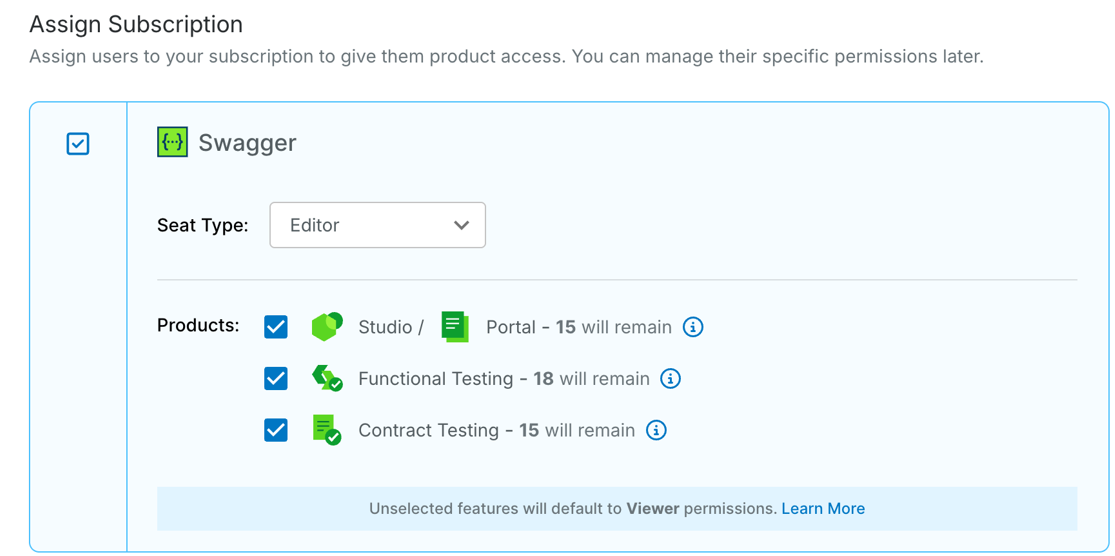
Select the checkbox next to each Swagger product you want to assign, for example, Swagger Studio.
(Optional) If the checkbox is disabled, click Buy Now or Buy More to purchase seats. If no seats are available, you can invite users only for products that have the required subscriptions and seats.
Review the details, and then click Confirm to save your changes. SmartBear assigns the license, the Editor seat type, and the selected products to the user.
Unassign a Subscription
To unassign a subscription, do the following:
In the Edit Subscription Assignment dialog box, clear the checkbox next to the Swagger product, for example, Swagger Studio or Swagger Contract Testing.
Click Confirm to save your changes.
The subscription is unassigned.